
You have an old family photo. Maybe it's your grandparents on their wedding day, or your dad as a kid sitting on the porch. It's faded, scratched, and the colors have shifted to that familiar yellow-brown. Now imagine turning that photo into a short video where the scene gently comes alive with motion, camera movement, and ambient sound. That's not science fiction anymore. It's a two-step process you can do today.
The key is doing it in the right order: restore the photo first, then animate it. Skip the restoration step and your video will inherit every scratch, fade mark, and color shift from the original. The AI video generator doesn't fix your photo. It animates whatever you give it.
Why You Need to Restore Before You Animate
AI video generators like Seedance 2.0 use your input image as the foundation for every frame they generate. If your source photo has scratches, the video will have scratches. If the colors are faded, the video will look washed out. If the faces are blurry, the animated faces will be blurry too.
Think of it like printing a poster from a low-quality scan. No matter how good the printer is, the output can only be as good as the input. The same principle applies here. A clean, sharp, color-corrected photo produces a dramatically better video than a damaged original.
Step 1: Restore Your Photo with ClearPastAI
Before you even think about animation, get your photo looking its best. ClearPastAI handles all the common problems you find in old photos:
Fix Fading and Color Shifts
Old photos lose contrast and develop color casts over time. Blues turn purple, whites turn yellow, and everything gets muddy. ClearPastAI's AI enhancement corrects the color balance and restores the original contrast, giving Seedance a much better starting point.
Remove Scratches and Damage
Scratches and creases in a source photo become animated scratches in the video. They move with the camera, which looks unnatural and distracting. Removing them first means your video looks clean.
Sharpen Faces and Details
Blurry faces produce weird artifacts when animated. The AI tries to generate motion from unclear features and the results can look unsettling. A sharp, clear face produces smooth, natural-looking motion.
Upscale to Higher Resolution
Old photos are often small. A 200x300 pixel scan from the 1970s won't produce a good video. Upscaling it to 2x or 4x resolution gives Seedance more detail to work with, and the output video looks sharper.
Colorize Black and White (Optional)
If your photo is black and white, colorizing it before animation gives the video a much more lifelike feel. Seedance can animate B&W photos, but color makes the result feel more like real footage.
Example: Before and After Restoration
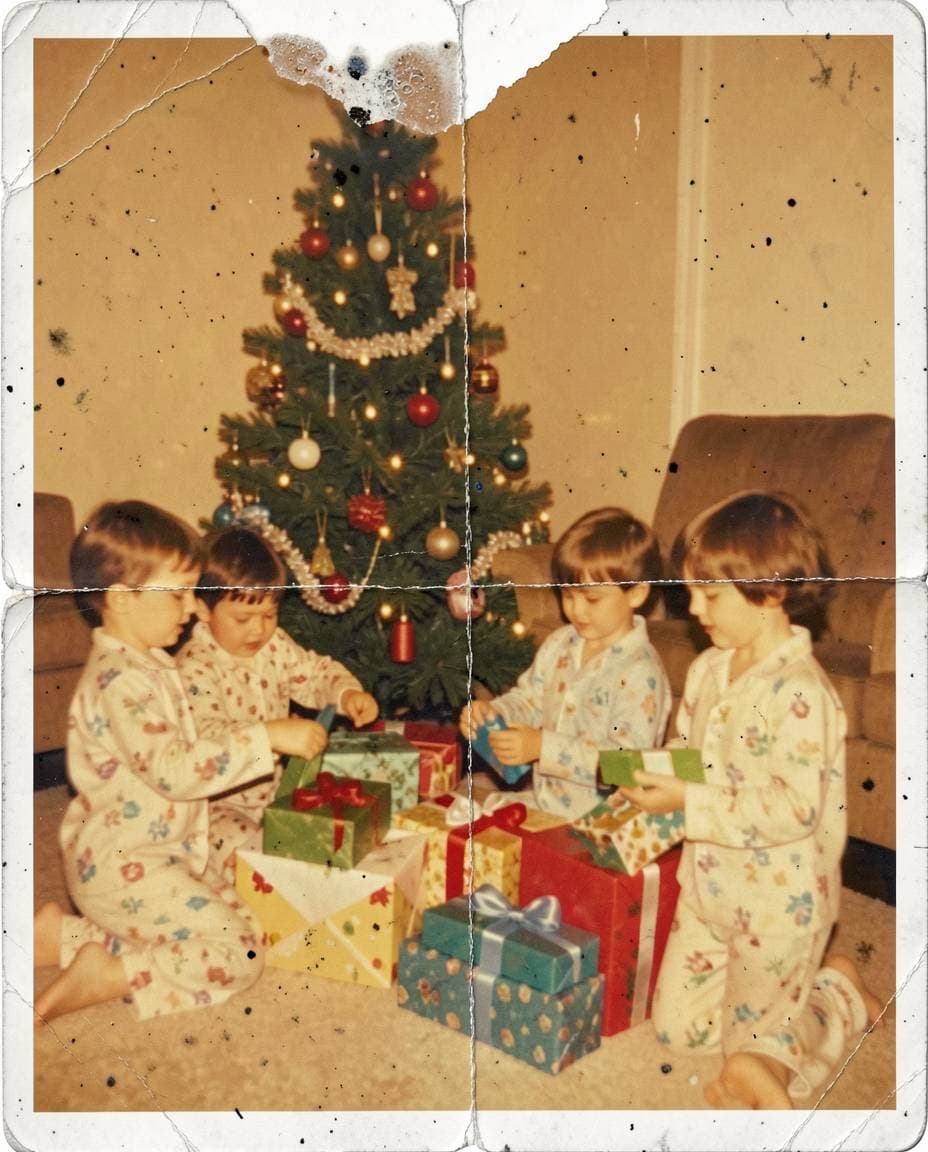
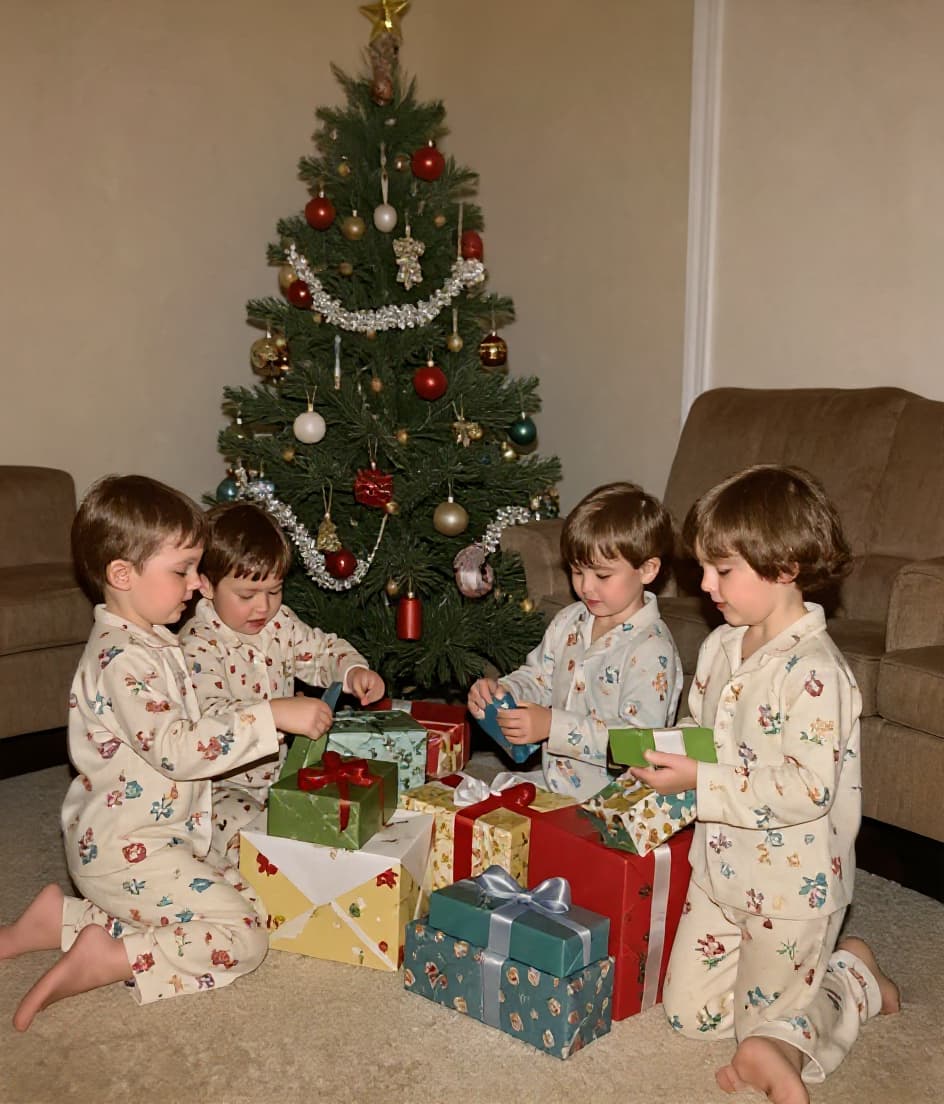
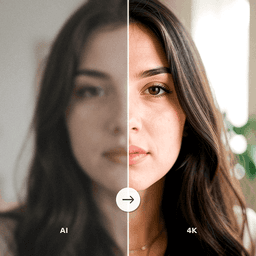
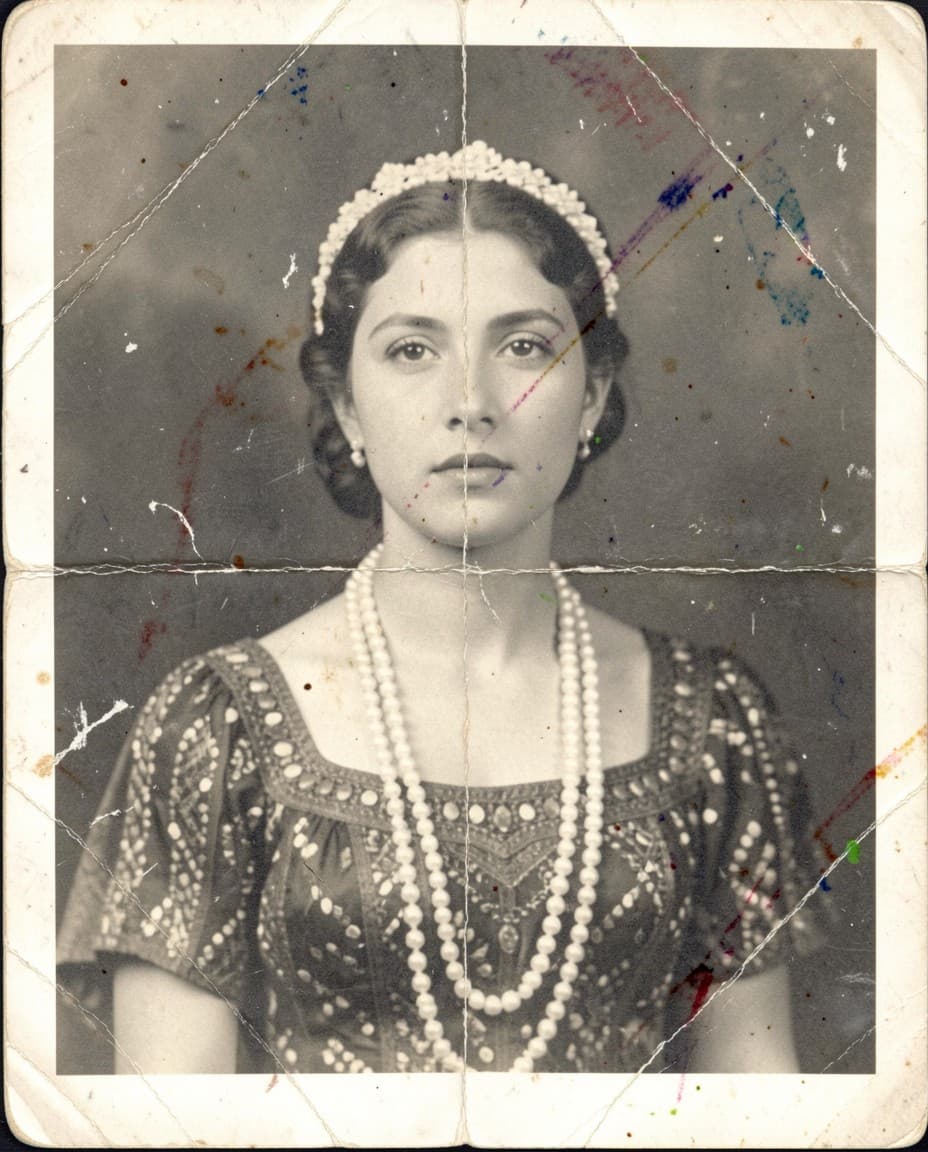
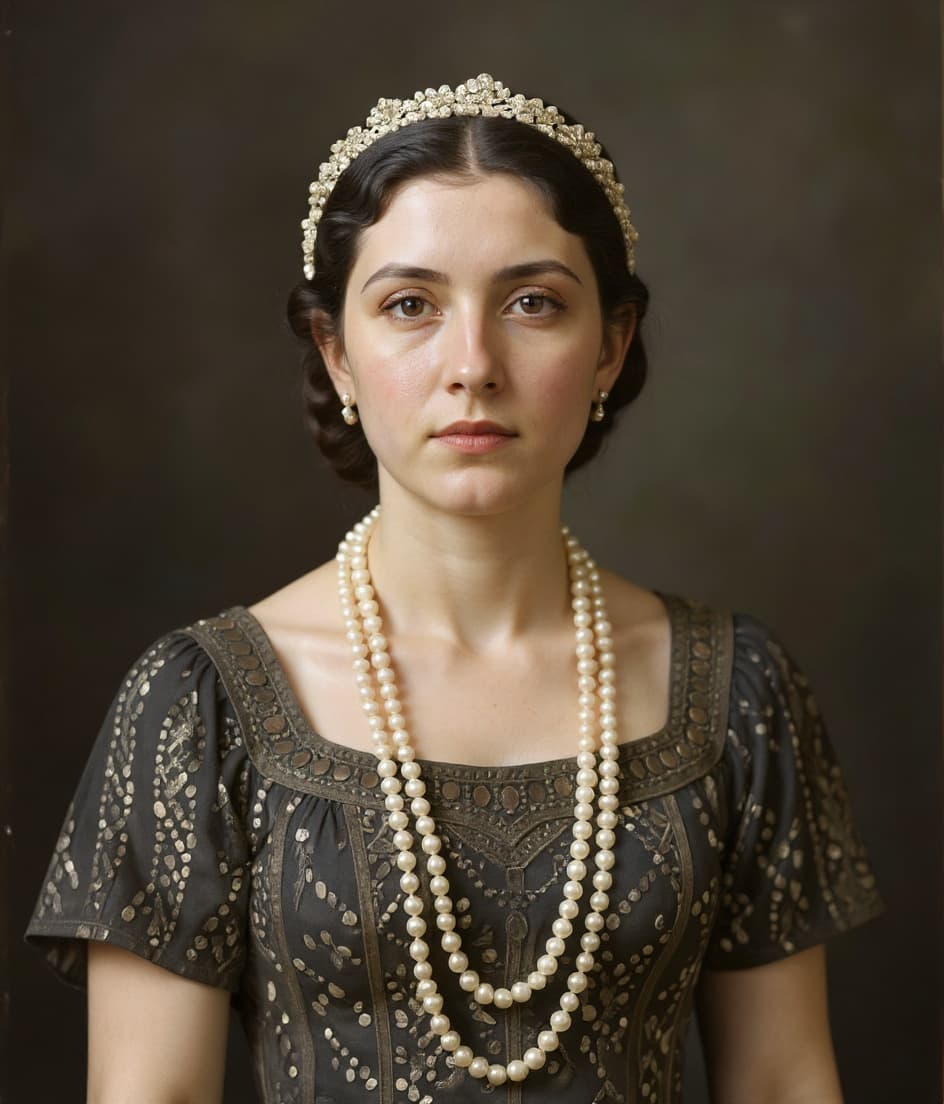
Here's what a typical restoration looks like. The original has heavy fading, scratches, and a yellow color cast. After ClearPastAI, the colors are corrected, damage is removed, and faces are sharp.
Restore Your Photos with ClearPastAI
Download ClearPastAI and bring your old, faded, and damaged photos back to life in seconds. No subscription needed to get started.
Free to try. No account required.
Step 2: Animate with Seedance 2.0
Once your photo is restored, you're ready to animate it. Seedance 2.0 is ByteDance's AI video generation model, and it's the best option right now for image-to-video because it generates audio alongside the visuals. No silent clips that need post-production sound.
How to Do It
- Go to Dreamina on CapCut or any platform that offers Seedance 2.0 (like fal.ai).
- Upload your restored photo as the input image.
- Write a prompt describing the motion you want. Be specific. Instead of "make it move," try something like "gentle camera push-in, the woman looks toward the camera and smiles slightly, warm afternoon light, ambient outdoor sounds."
- Select your aspect ratio (16:9 for landscape photos, 9:16 for portraits, 4:3 for classic prints).
- Generate and download your video.
Prompting Tips for Old Photos
- Keep motion subtle. Old photos look best with gentle movements. A slight head turn, a blink, a soft breeze moving hair. Big action sequences don't match the vintage feel.
- Mention the era. Adding "1950s," "vintage," or "classic home movie" to your prompt helps the AI match the period.
- Describe ambient sound. Since Seedance generates audio natively, you can specify "birds chirping," "distant traffic," or "wind through trees" to match the scene.
- Use camera movement. A slow zoom-in on a face or a gentle pan across a group photo creates a cinematic effect without overdoing it.
- Generate multiple versions. AI video generation is not deterministic. Run the same prompt 3-4 times and pick the best result.
What Seedance 2.0 Can Do with a Restored Photo
Here are some examples of what Seedance 2.0 produces. These were all generated from single images with AI-generated audio:
AI-generated showcase
Camera movement
Realistic physics
Native audio generation
Demos from fal.ai/seedance-2.0
Restored vs. Unrestored: The Difference Is Massive
To show why restoration matters, here's what happens when you skip it:
| Issue in Source Photo | What Happens in the Video |
|---|---|
| Scratches | Animated scratches that move with the camera, looking unnatural |
| Faded/yellow colors | Entire video has a sickly yellow tint |
| Blurry faces | Distorted facial animation, uncanny valley effect |
| Low resolution | Pixelated video, especially noticeable with motion |
| Torn/missing areas | AI fills gaps unpredictably, creating visual glitches |
Restoring the photo first eliminates all of these problems. The AI video generator gets a clean canvas to work with, and the output looks like actual vintage footage instead of a damaged scan that happens to move.
More Before and After Restorations
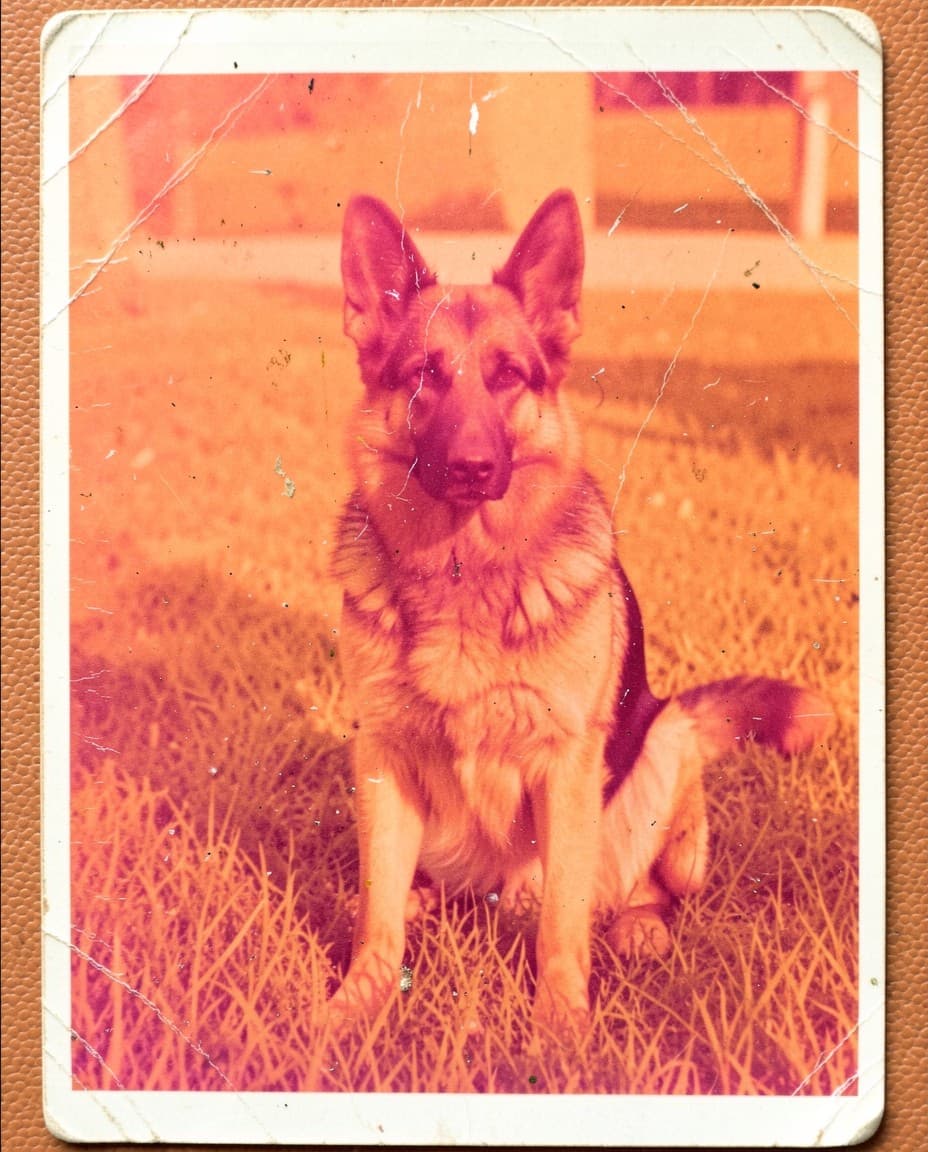
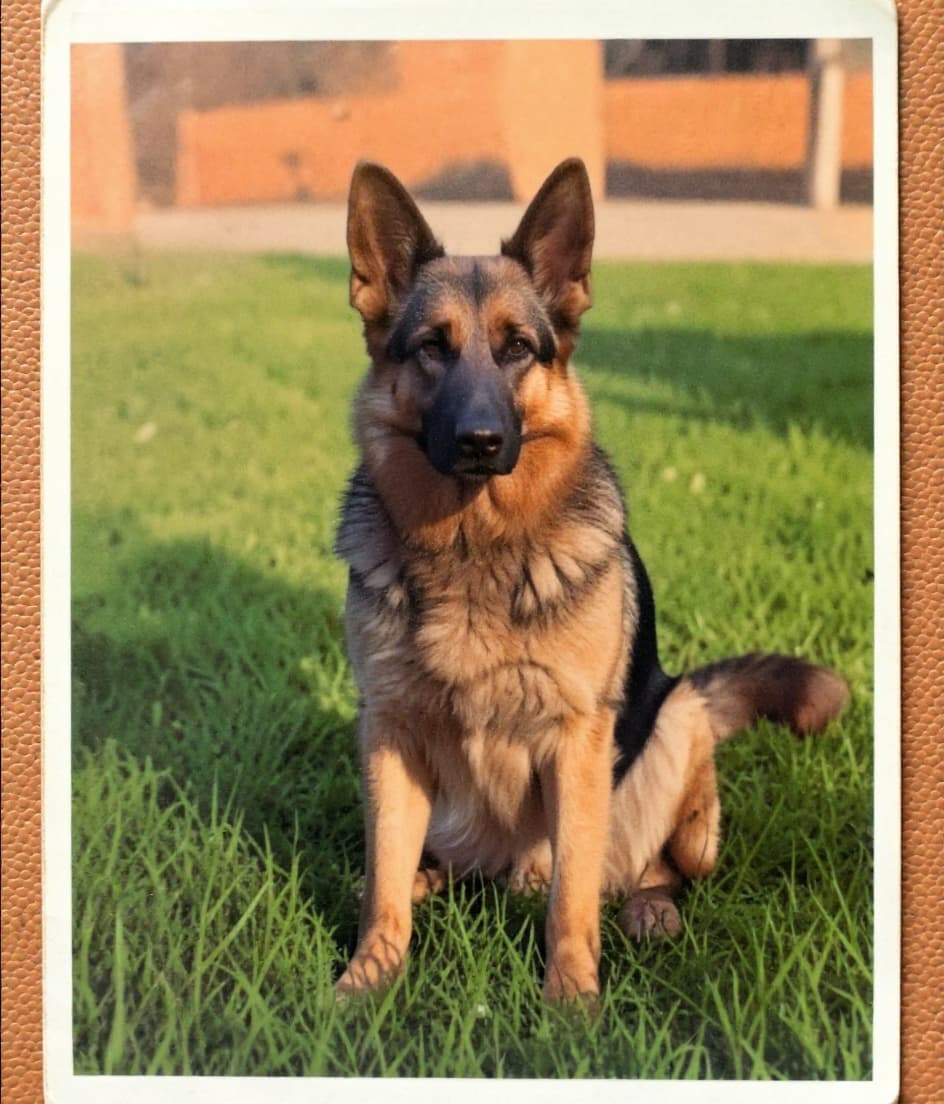
Here are more examples of photos restored with ClearPastAI. Any of these would produce great results when animated with Seedance 2.0:
The Complete Workflow
Here's the full process from start to finish:
- Scan or photograph your old photo. Use a flatbed scanner if possible. A phone camera works too, just make sure the lighting is even and the photo fills the frame.
- Open ClearPastAI on your iPhone or Android device and import the scan.
- Run AI Enhancement. This fixes fading, corrects colors, and sharpens details in one tap.
- Remove scratches if the photo has visible damage. The AI inpainting fills in damaged areas naturally.
- Upscale the image to at least 1024px on the longest side. Higher resolution means better video quality.
- Colorize (optional) if it's a black-and-white photo and you want a color video.
- Save the restored photo to your camera roll.
- Upload to Seedance 2.0 via CapCut/Dreamina or fal.ai.
- Write your prompt describing the motion, camera movement, and ambient sound you want.
- Generate, review, and share your animated memory.
From a Shoebox to a Living Memory
A year ago, animating an old photo required professional software, hours of work, and a solid understanding of video editing. Today you can go from a damaged print to an animated video with sound in about five minutes. The restoration step is what makes the difference between a cool trick and something that actually looks good.
Start with ClearPastAI to get the photo looking its best. Then let Seedance 2.0 handle the animation. The combination of a dedicated restoration tool and a cutting-edge video generator produces results that would have seemed impossible just a couple of years ago.
Restore Your Photos with ClearPastAI
Download ClearPastAI and bring your old, faded, and damaged photos back to life in seconds. No subscription needed to get started.
Free to try. No account required.